
Browser Extension
Amee Now Playing is an optional browser extension for Chrome and Microsoft Edge. Amee works fine without it — it reads now-playing information from macOS directly — and the extension only ever adds to that.
What it adds
Section titled “What it adds”macOS’s own now-playing session names an app, never a document. That’s the whole shape of what the extension fixes:
- Browser media that macOS can’t see. The instant a video pops out into Picture-in-Picture, Chromium leaves the system now-playing session entirely — every field goes empty and nothing brings it back until a brand-new video starts. The extension reads the page itself, so it’s unaffected.
- Jumping to the exact tab. Without it, “go to what’s playing” can only raise the browser on whatever tab happened to be in front. See
focusNowPlayingTab()in the SDK reference. - Docking to a Picture-in-Picture window. Amee won’t attach the mini player to a floating video it can’t identify, so this needs the extension by construction.
- Popping a video out from the browser. Entering Picture-in-Picture requires a real click inside the page, which nothing outside the browser can supply — so the button lives in the extension (over the player, or in its popup) rather than in Amee’s window. Leaving Picture-in-Picture needs no click, and that half is available to Amee and to skins.
Connecting it
Section titled “Connecting it”-
Install Amee Now Playing from the Chrome Web Store. Chrome, Brave, Vivaldi, Opera and Arc install it from there directly. Edge installs the same build once you allow extensions from other stores — the banner Edge shows on the listing does that — since the Edge Add-ons listing isn’t up yet. Firefox and Safari are not supported.
-
Play something in a tab on one of the sites it covers.
-
Amee shows an approval prompt naming the extension. Approve it once — a random token is stored in the extension so you aren’t asked again.
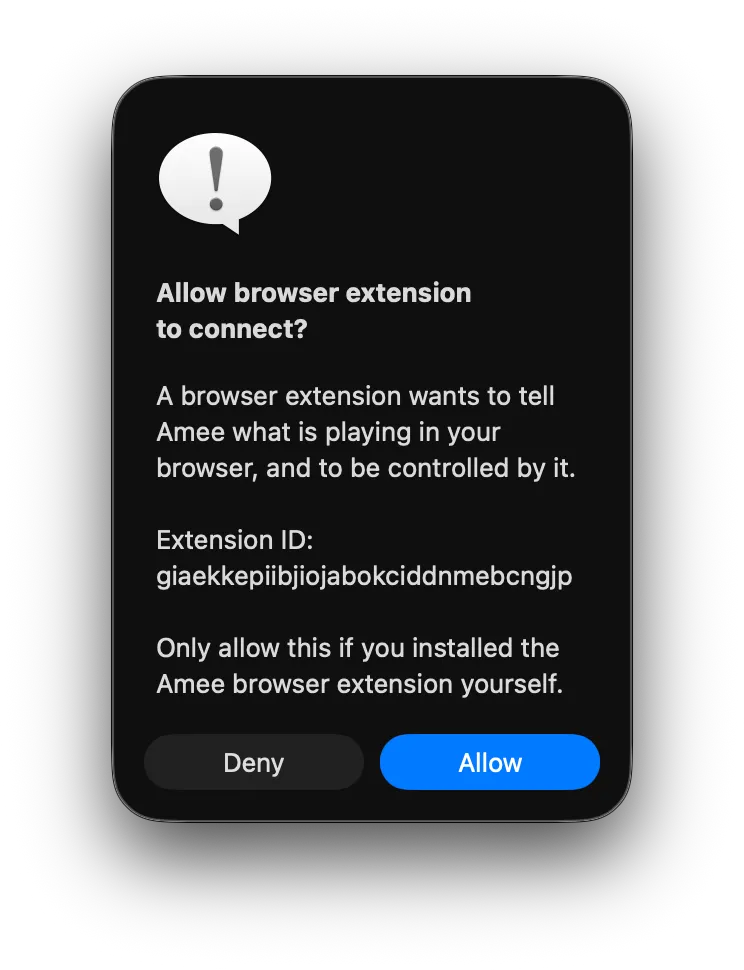
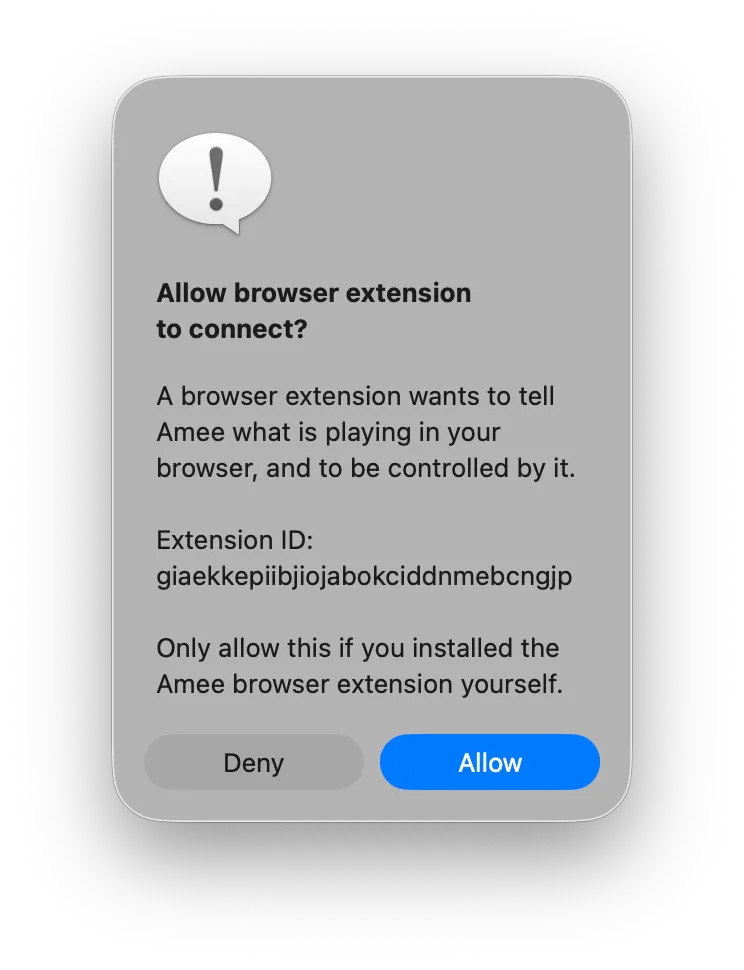
Declining stops the extension asking again for ten minutes.
Each browser you install the extension in approves separately and keeps its own token, so more than one approved extension is normal rather than a fault. Dashboard → Extension → Connection lists what’s currently approved, along with the loopback port Amee is listening on and when it last heard anything.
The Extension tab
Section titled “The Extension tab”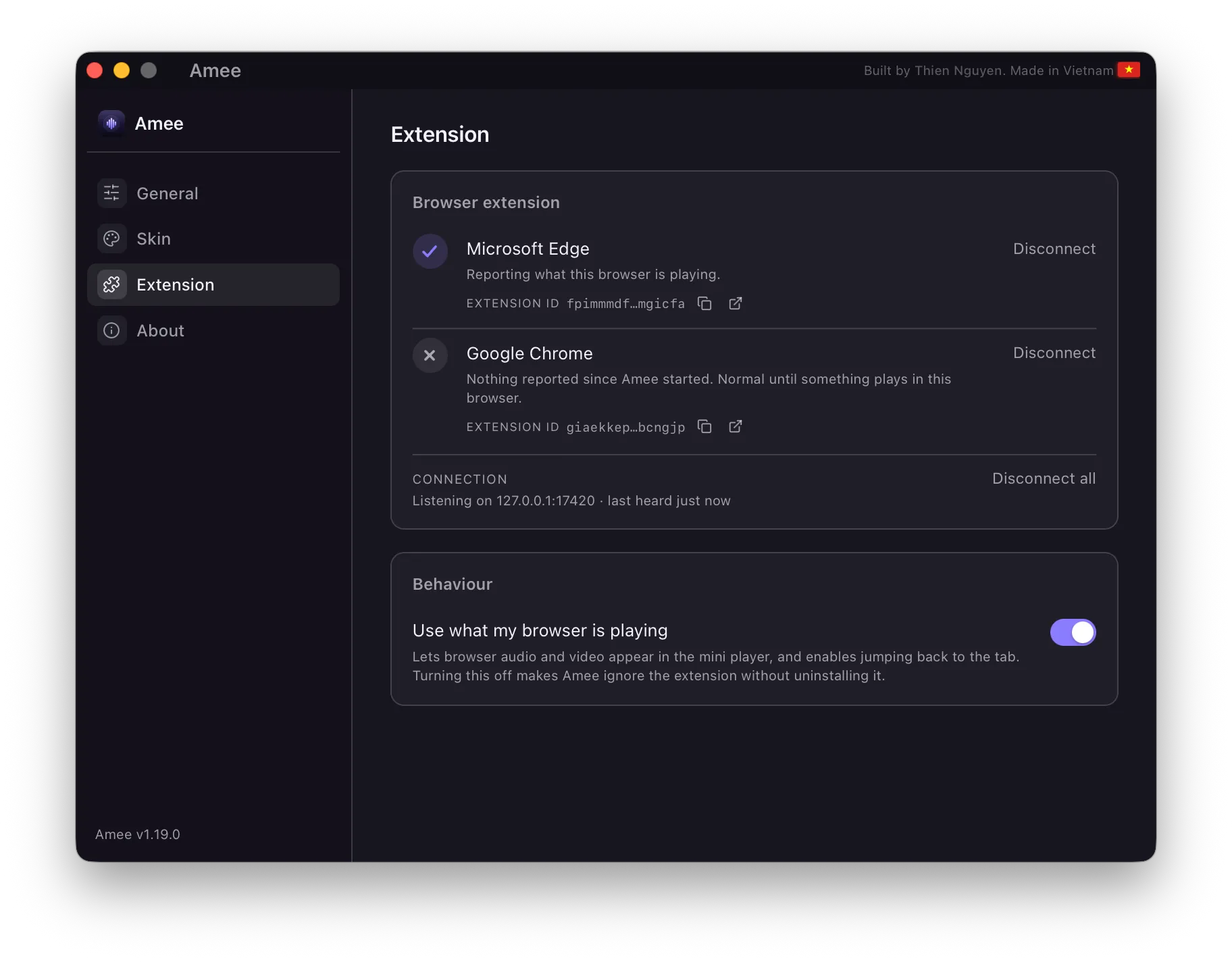
Dashboard → Extension is where the extension appears on Amee’s side:
- Status — three states, deliberately not collapsed into one badge. Not connected means it has never been approved. Connected means Amee is receiving what your browser is playing. Paired, but not reporting means it’s set up and currently quiet, which is normal: it only speaks up when there’s a media page open.
- Connection — the port, when Amee last heard from the extension, which extension IDs are approved, and a Disconnect button that forgets them.
- Use what my browser is playing — the kill switch. Off, Amee refuses everything the extension sends without you having to uninstall it. Features that depend on it (docking, jumping to a tab, browser artwork) then correctly report themselves as unavailable rather than silently doing nothing.
Docking itself is switched on and off under General, not here.
The sites it covers
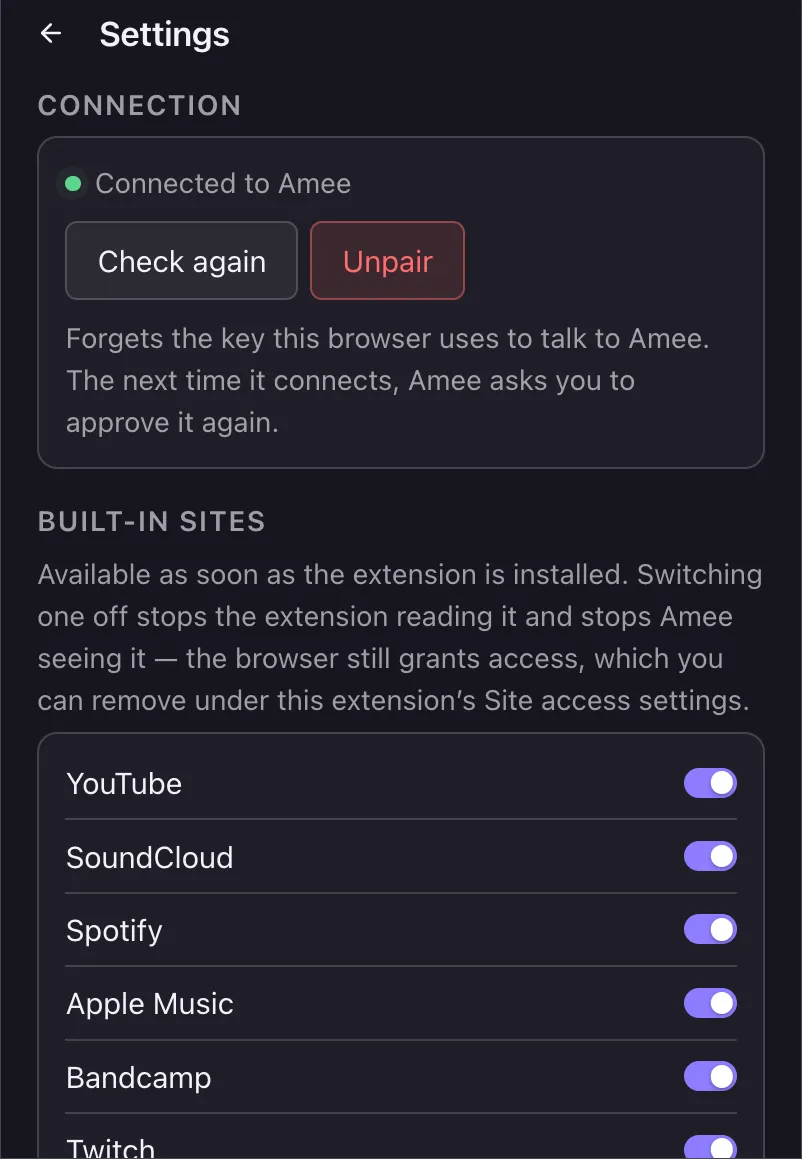
Section titled “The sites it covers”The extension reads media state on a fixed built-in list of sites, granted when you install it, plus a second fixed list you can switch on one site at a time behind the browser’s own permission prompt. Both lists, with their current state, are in the extension’s own settings — the gear icon in its popup. That’s also where you’ll find the Picture-in-Picture button’s per-site switches, the connection controls, and a reset.
For exactly what is read, where it goes, and what is stored, see the Privacy Policy.
Removing it
Section titled “Removing it”Uninstalling the extension also deletes its stored token, since that lives in the extension’s own storage. Amee keeps working; the extension’s contribution simply goes away. From Amee’s side, Disconnect forgets the approval without touching the browser, and Use what my browser is playing switches the whole path off while leaving it installed.