
Getting Started
Amee runs on macOS 14.4 or later.
Installing
Section titled “Installing”- Download Amee.
- Drag Amee.app into your Applications folder.
- Open it from Applications (or Spotlight) like any other app.
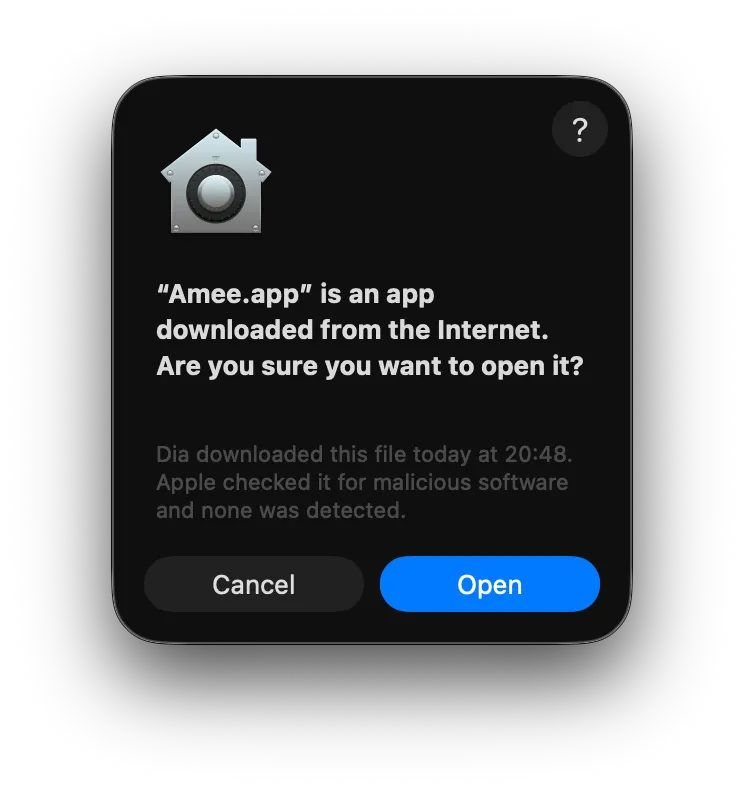
If macOS warns that it can’t verify the developer, right-click (or Control-click) the app and choose Open, then confirm — you only need to do this once.
Amee doesn’t open a settings window at launch — it puts an icon in the menu bar and shows the floating mini player. See Dashboard, Tray & Quitting for what that icon does.
First-run permissions
Section titled “First-run permissions”macOS will prompt for these the first time each is actually needed — none of them at install, and none of them all at once:
- System audio recording — needed for the audio visualizer to react to what’s playing. If you skip this prompt, the visualizer just won’t animate; nothing else is affected. You can grant it later in System Settings → Privacy & Security. See Audio Visualizer.
- Local network access — needed so Amee can find AirPlay speakers on your network. See Volume & Audio Output.
- Accessibility — only needed for Let the mini player drag the video window (Dashboard → General). Moving another app’s window is the one thing Amee can’t do without it; the setting’s own row is where you grant it. Everything else, docking included, works without it.
Now-playing metadata itself needs no separate permission — it works automatically as soon as something starts playing.
Global shortcuts
Section titled “Global shortcuts”Two system-wide shortcuts are on by default and work from any app: ⌃⌘P shows/hides the mini player, ⌃⌘, opens the Dashboard. Rebind or switch either off in Dashboard → General → Global shortcuts.
Launching Amee automatically
Section titled “Launching Amee automatically”Turn on Launch at login in the Dashboard (menu bar icon → Settings… → General) if you’d like Amee to start automatically when you sign in. See Dashboard, Tray & Quitting.
Next steps
Section titled “Next steps”- Now Playing, Audio Visualizer, and Volume & Audio Output cover what Amee shows and controls out of the box.
- Browser Extension is optional, and what lets Amee see browser tabs by name and follow a video into Picture-in-Picture.
- Skins covers replacing the mini player’s UI entirely — including where to find skins other people have published.
- Themes covers the color and style tokens every surface reads.