
The Mini Player Window
The floating mini player stays on top of every other window, with no title bar — just a compact, transparent pill.
Moving it
Section titled “Moving it”Drag the pill by its content (its title/artwork, or wherever the active skin marks as a drag handle) to move it anywhere on screen. Amee remembers where you last dragged it to and reopens there next launch.
Resizing
Section titled “Resizing”Some skins let you drag-resize the mini player within bounds that skin defines; others are a fixed size. Your resized size is remembered per skin, across restarts and across switching to another skin and back.
Docking to a Picture-in-Picture video
Section titled “Docking to a Picture-in-Picture video”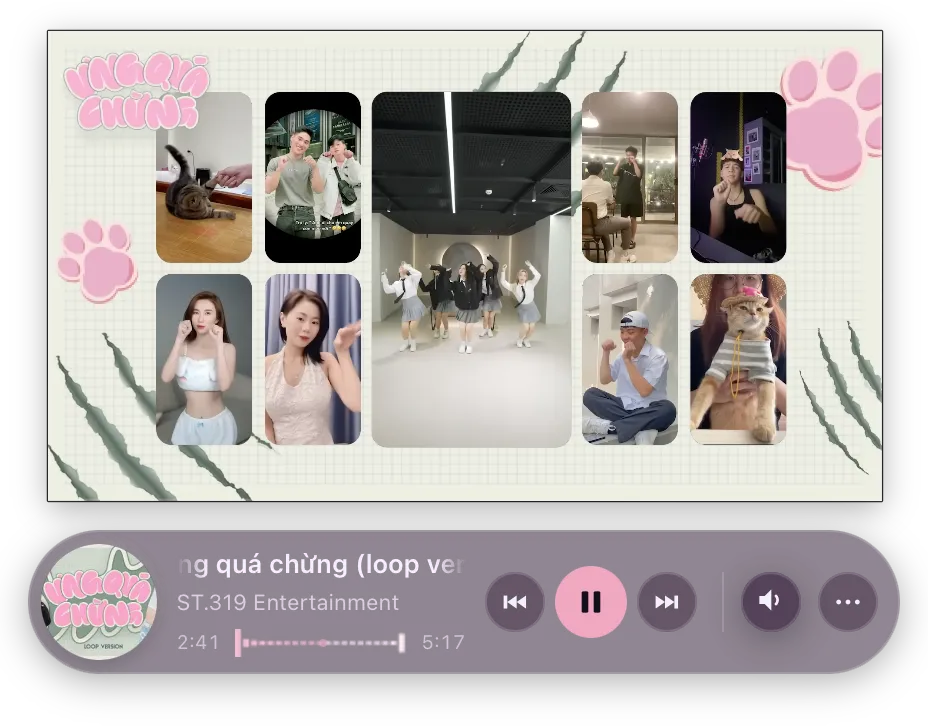
With Dock to Picture-in-Picture on (Dashboard → General → Mini player), popping a video out of Chrome or Edge attaches the mini player to that floating window and keeps it there as the window moves — that is, the pill follows the video. (The setting below reverses which one does the following.) Drag the pill away to detach, drag it back to re-attach — the snap is magnetic, and a skin that follows the SDK draws a cue while you’re inside re-attach range.
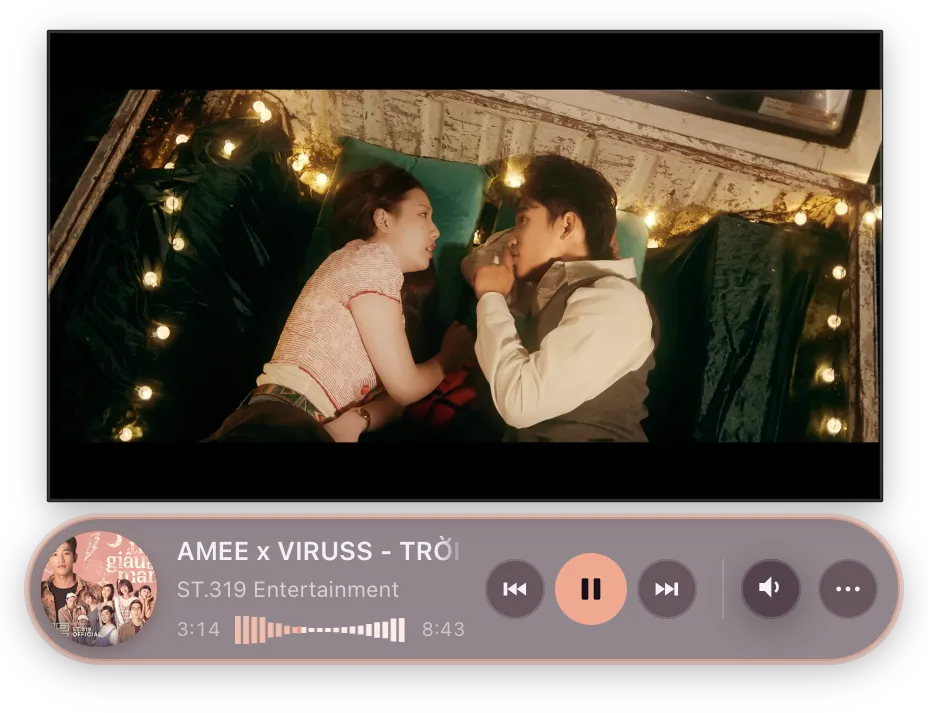
Which edge it attaches to is the skin’s decision, not a setting — only the skin knows what its own artwork looks like.
Let the mini player drag the video window turns the relationship around: the pill keeps the spot you gave it and the video is brought to it. Popping a video out no longer moves the pill — your browser puts the floating window wherever it likes, and Amee slides it into place beside the pill instead — and dragging the pill takes the video along with it. Dragging the video window itself still moves the pill, so you can always reposition the pair from either side. That one needs macOS Accessibility access.
Docking needs the browser extension: Chromium leaves the system now-playing session the instant a video pops out, so without the extension Amee can’t tell what the floating window is showing and deliberately won’t attach to it. See Docking to Picture-in-Picture for the skin-author side.
Popovers and controls that pop out
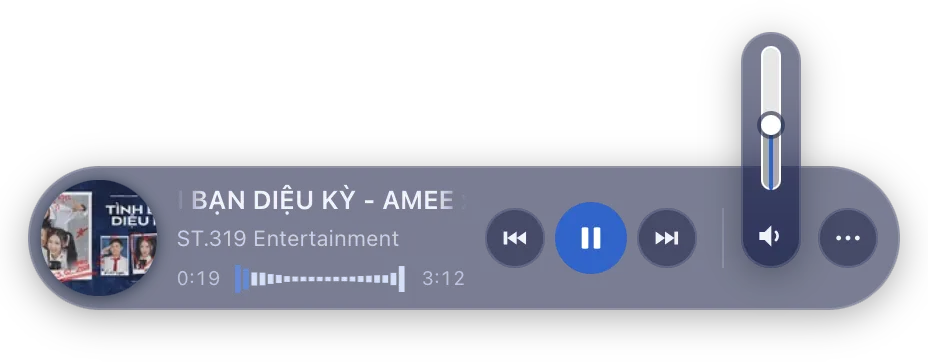
Section titled “Popovers and controls that pop out”Some skins can pop open extra controls — a volume slider, an expanding panel — that temporarily extend beyond the mini player’s normal bounds, growing whichever direction has room on your screen and then collapsing back automatically.
Hover controls that keep working in the background
Section titled “Hover controls that keep working in the background”Some skins have hover-driven controls (like a volume flyout) that keep responding to your cursor even while you’re working in another app — you don’t need to click into Amee first for these to react.
Click-through
Section titled “Click-through”If a skin leaves blank space around its compact content, clicks in that empty space pass straight through to whatever’s behind the floating window, rather than the window blocking them.
Showing and hiding
Section titled “Showing and hiding”The mini player can be hidden without quitting Amee — with the Show / hide mini player global shortcut (⌃⌘P by default, rebindable in Dashboard → General), via the auto-hide feature (see Now Playing), or programmatically from a skin using amee.hide(). Bring it back with the same shortcut, from the tray menu (“Show Player”), or by calling amee.activateWindow(). With Show when a video pops out on, popping a video into Picture-in-Picture also brings it back.
Skins can react to these transitions: amee.onShow(cb) fires when the window becomes visible again (e.g. to replay an entrance animation), and amee.onHide(cb) fires right before the window hides (e.g. to reset the UI to a clean state so a later reveal doesn’t flash stale content). See the SDK reference.